> For clean Markdown of any page, append .md to the page URL.
> For a complete documentation index, see https://notion.ferndocs.com/llms.txt.
> For AI client integration (Claude Code, Cursor, etc.), connect to the MCP server at https://notion.ferndocs.com/_mcp/server.
# Connecting to Notion MCP
This guide walks you through connecting your AI tool to Notion using the Model Context Protocol (MCP).
You can connect through Notion’s in-app directory of featured AI tools, or by finding Notion MCP in your AI tool’s directory. Other programs that are MCP clients, but don't yet have a directory, can connect manually using Notion MCP's public URL (https://mcp.notion.com/mcp) as a custom connection.
Once connected, your tool can request live context from a user’s Notion workspace based on their access and permissions. This includes pages, databases, and comments.
## Connect through the Notion app
For the easiest setup with popular AI tools:
1. Open **Settings** in the Notion app
2. Go to **Connections** → **Notion MCP**
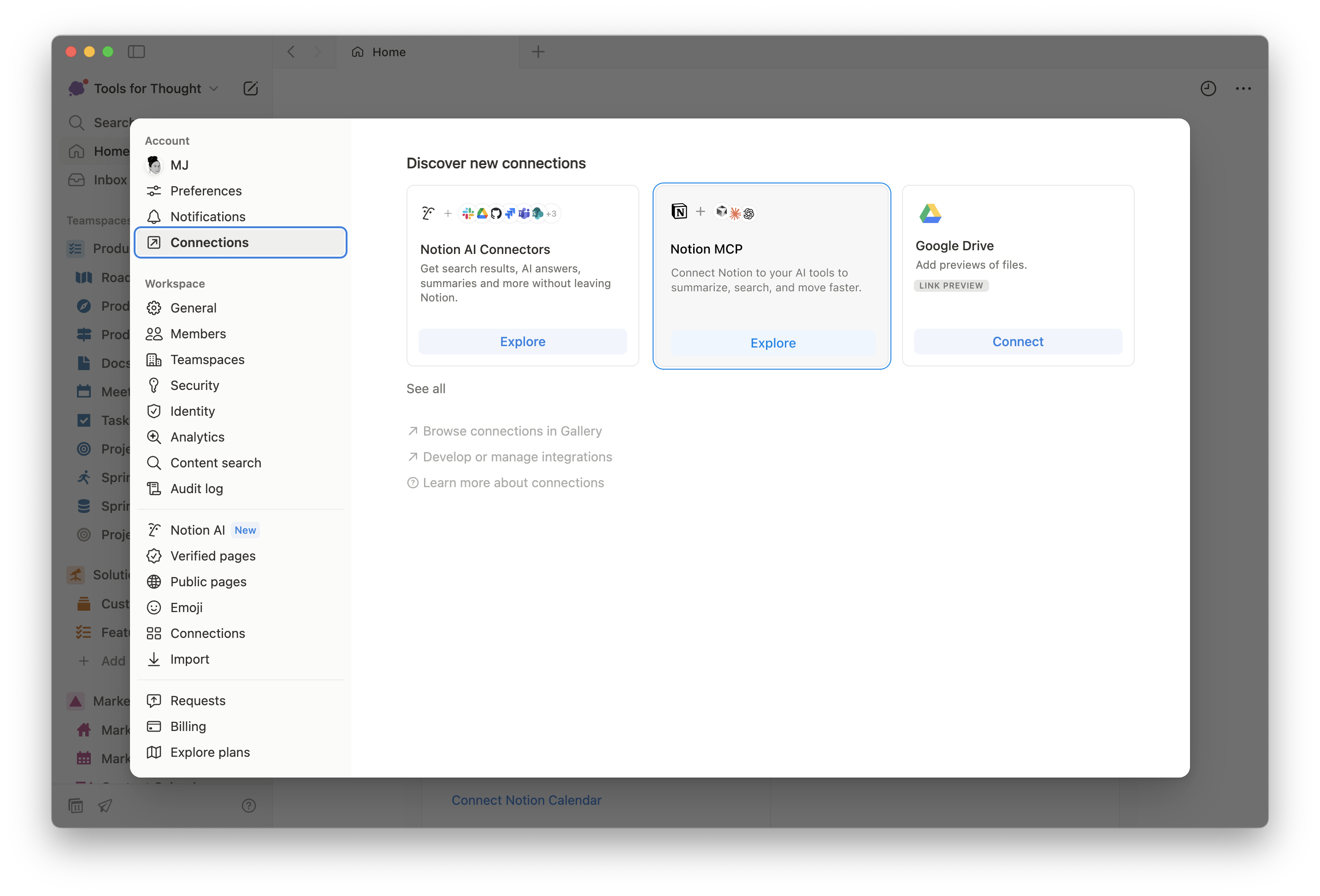
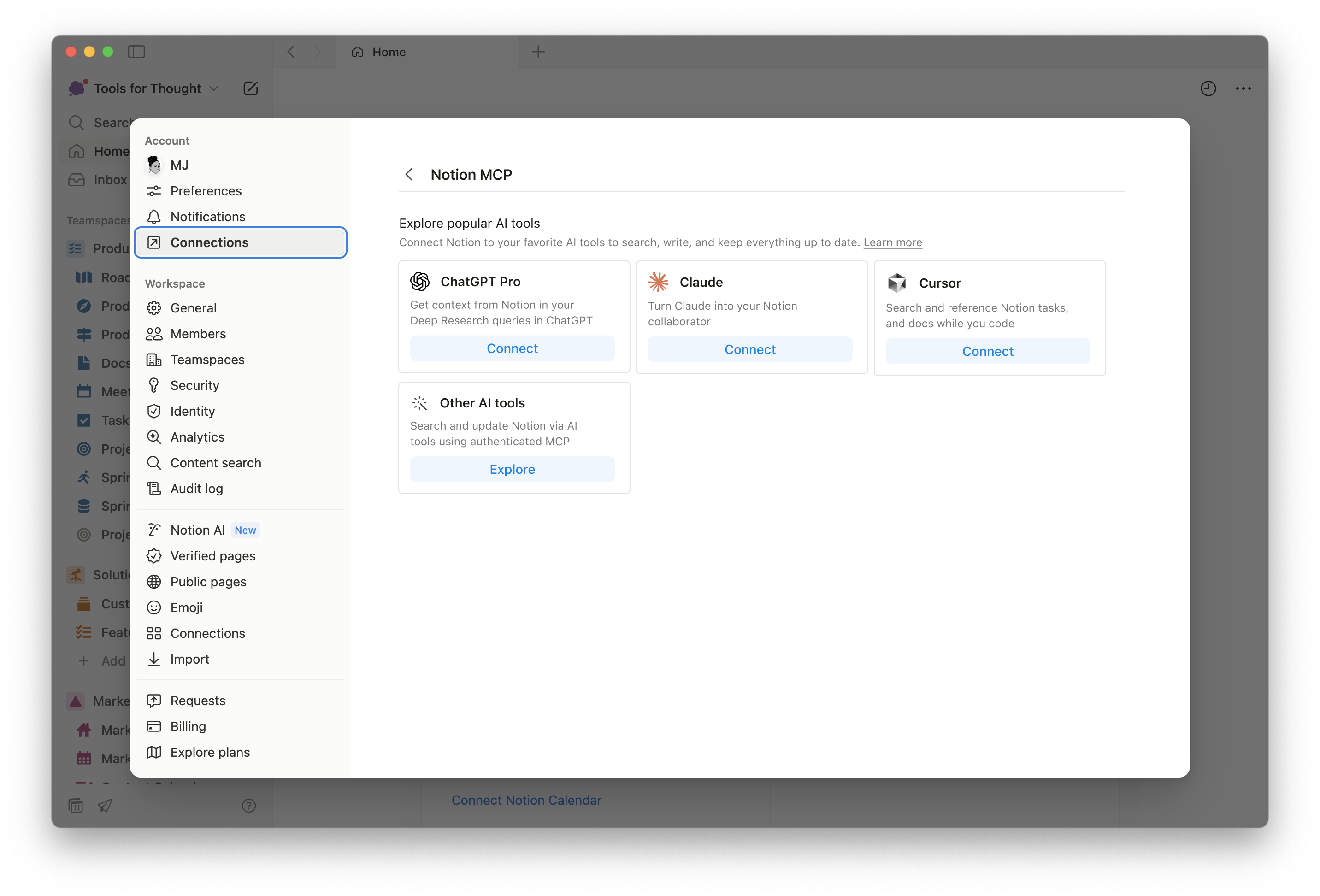
3. Choose your AI tool
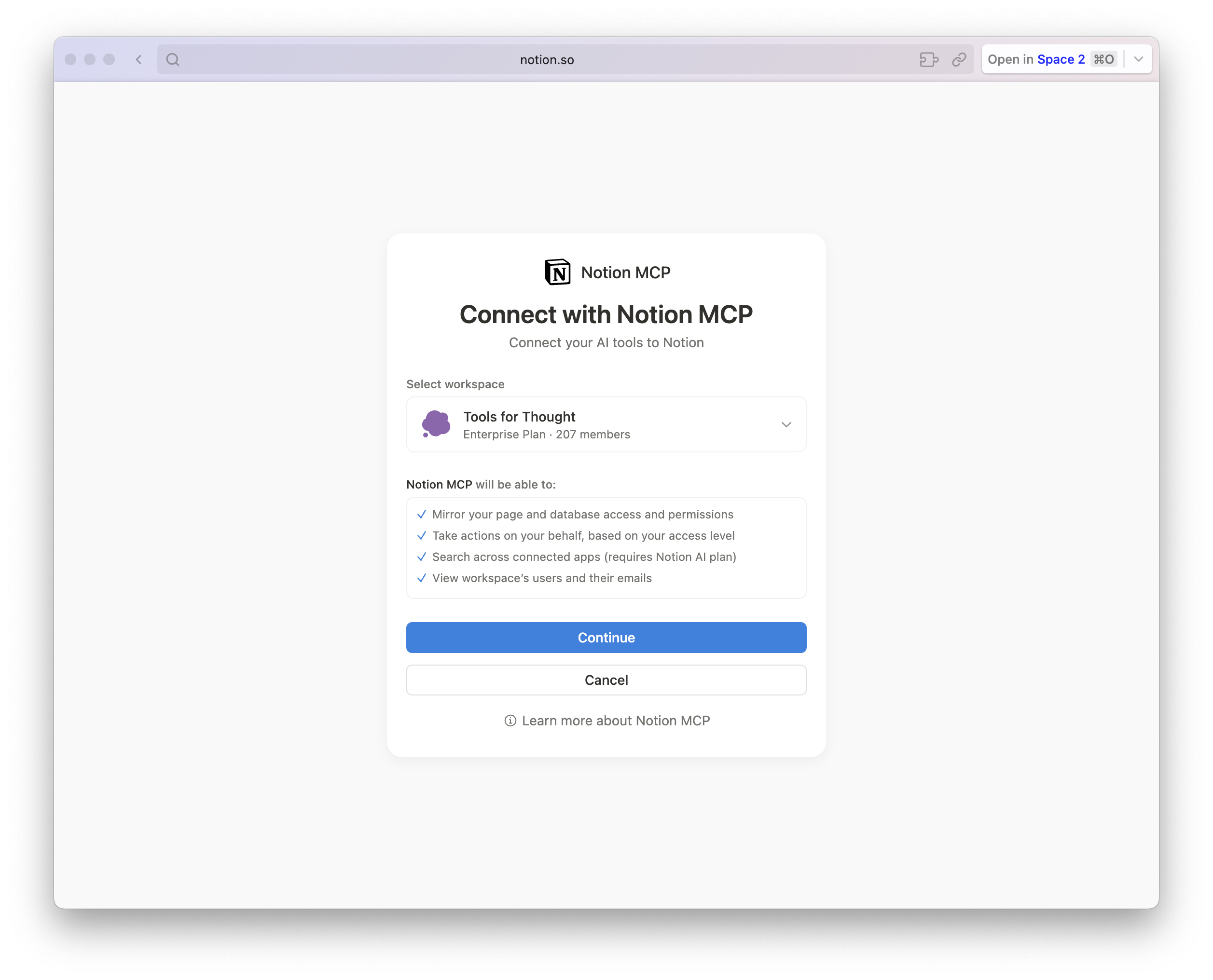
4. Complete the OAuth flow to connect.
## Connect through your AI tool
To connect, search for "Notion MCP" in your tool's MCP directory or use these connection methods:
### Streamable HTTP (Recommended)
- URL: https://mcp.notion.com/mcp
- JSON config:
**`JSON`**
```json JSON
{
"mcpServers": {
"Notion": {
"url": "https://mcp.notion.com/mcp"
}
}
}
```
### SSE (Server-Sent Events)
- URL: https://mcp.notion.com/sse
- JSON config:
**`JSON`**
```json JSON
{
"mcpServers": {
"Notion": {
"url": "https://mcp.notion.com/sse"
}
}
}
```
### STDIO (Local Server)
- JSON config
**`JSON`**
```json JSON
{
"mcpServers": {
"notionMCP": {
"command": "npx",
"args": ["-y", "mcp-remote", "https://mcp.notion.com/mcp"]
}
}
}
```
## Troubleshooting connection issues
If you're experiencing issues connecting your AI tool to Notion MCP, here are some common solutions:
1. **Check MCP Client Support**
First, verify that your AI tool supports MCP clients and can connect to MCP servers. Not all AI tools have this capability built-in yet.
2. **Verify Remote Server Support**
Some AI tools have MCP clients but don't support remote connections. If this is the case, you may still be able to connect to Notion using our [open-source MCP server](https://github.com/makenotion/notion-mcp).
3. **Request MCP Support**
If your AI tool doesn't support MCP at all, we recommend reaching out to the tool's developers to request MCP server connection support. This will help expand the ecosystem of MCP-compatible tools.