> For clean Markdown of any page, append .md to the page URL.
> For a complete documentation index, see https://notion.ferndocs.com/llms.txt.
> For AI client integration (Claude Code, Cursor, etc.), connect to the MCP server at https://notion.ferndocs.com/_mcp/server.
# Build a Link Preview integration
A Link Preview is a real-time subtitle of authenticated content that unfurls in Notion when an authenticated user pastes a supported link in their workspace.
Developers can build Link Preview integrations to customize how links unfurl in Notion workspaces for domains they own.
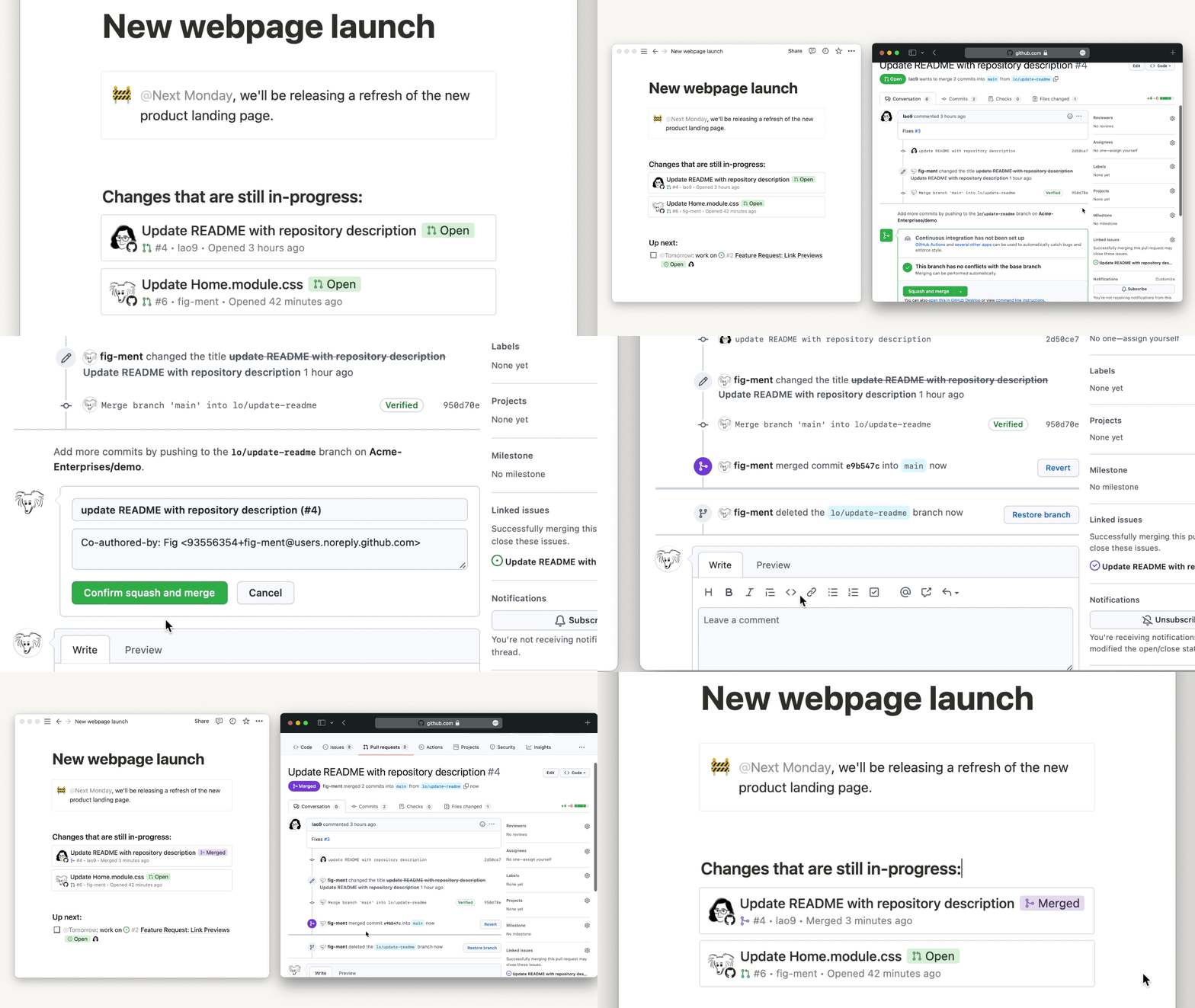 This guide explains how to use the Notion Link Previews API to create Link Previews for your product. After you’ve read this guide, you’ll know how to:
1. [Configure Link Preview settings in the integration dashboard](https://www.notion.so/profile/integrations)
2. [Set up the authorization flow](#-set-up-the-authorization-flow)
3. [Use the Unfurl Callback URL](#-use-the-unfurl-callback-url)
4. [Manage updates to Link Previews](#-manage-updates-to-link-previews)
5. [Submit a Link Preview integration for security review](#-submit-your-integration-for-security-review)
To build a Link Preview integration, you must first request access to the Link Preview API. Fill out the [Link Preview request form](https://notionup.typeform.com/to/BXheLK4Z?typeform-source=developers.notion.com) before proceeding if you haven’t already.
## Requirements
- You’ve [requested and received access to the Link Previews API](https://notionup.typeform.com/to/BXheLK4Z?typeform-source=developers.notion.com).
- You own the domain that you’re using to create Link Previews. You’ll need to share a verification code from Notion with your domain host when you initialize the integration.
- Your application supports OAuth 2.0.
- You’ve read the [Link Previews overview](/docs/link-previews), so you have a good idea of what you’re building and how it works.
- You’ve read the [Authorization guide](/docs/authorization) and have familiarized yourself with Notion integrations.
With those requirements met, read on!
To build a Link Preview integration, you must first request access to the Link Preview API. Fill out the [Link Preview request form](https://notionup.typeform.com/to/BXheLK4Z?typeform-source=developers.notion.com) before proceeding if you haven’t already.
## 🌱 Create a public Notion integration
Link Preview integrations are a type of public integration. To create a Link Preview integration, you must first create a public integration. Once the public integration is created, you can enable the link preview setting through the [integration's settings](https://www.notion.so/profile/integrations).
To learn how to create a public integration, follow the [Authorization guide](/docs/authorization).
## 🛠️ Configure Link Preview settings in the integration dashboard
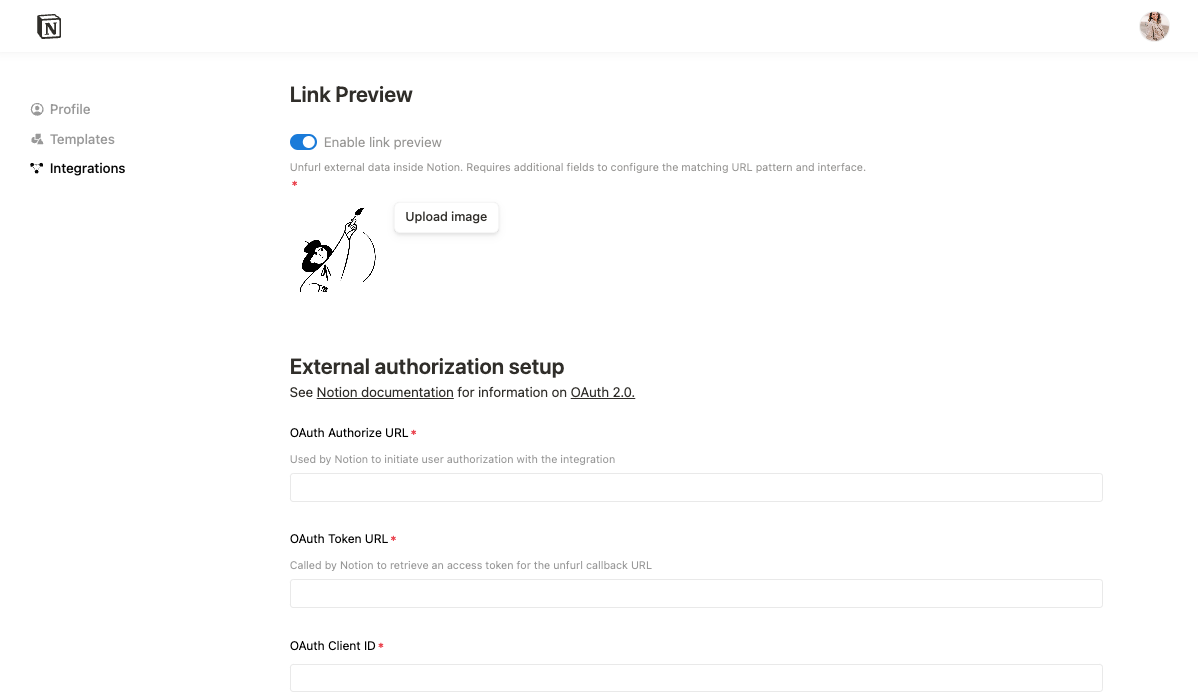
This step will guide you through enabling link previews for your integration, as well as filling out the link preview integration forms found in your [integration settings](https://www.notion.so/profile/integrations).
To start, navigate to the public integration you will be using for your link preview integration. It can be found in the [integration dashboard](https://www.notion.so/profile/integrations). If you have access to the Link Preview API, you will see a Link Preview section in the Configuration tab.
This guide explains how to use the Notion Link Previews API to create Link Previews for your product. After you’ve read this guide, you’ll know how to:
1. [Configure Link Preview settings in the integration dashboard](https://www.notion.so/profile/integrations)
2. [Set up the authorization flow](#-set-up-the-authorization-flow)
3. [Use the Unfurl Callback URL](#-use-the-unfurl-callback-url)
4. [Manage updates to Link Previews](#-manage-updates-to-link-previews)
5. [Submit a Link Preview integration for security review](#-submit-your-integration-for-security-review)
To build a Link Preview integration, you must first request access to the Link Preview API. Fill out the [Link Preview request form](https://notionup.typeform.com/to/BXheLK4Z?typeform-source=developers.notion.com) before proceeding if you haven’t already.
## Requirements
- You’ve [requested and received access to the Link Previews API](https://notionup.typeform.com/to/BXheLK4Z?typeform-source=developers.notion.com).
- You own the domain that you’re using to create Link Previews. You’ll need to share a verification code from Notion with your domain host when you initialize the integration.
- Your application supports OAuth 2.0.
- You’ve read the [Link Previews overview](/docs/link-previews), so you have a good idea of what you’re building and how it works.
- You’ve read the [Authorization guide](/docs/authorization) and have familiarized yourself with Notion integrations.
With those requirements met, read on!
To build a Link Preview integration, you must first request access to the Link Preview API. Fill out the [Link Preview request form](https://notionup.typeform.com/to/BXheLK4Z?typeform-source=developers.notion.com) before proceeding if you haven’t already.
## 🌱 Create a public Notion integration
Link Preview integrations are a type of public integration. To create a Link Preview integration, you must first create a public integration. Once the public integration is created, you can enable the link preview setting through the [integration's settings](https://www.notion.so/profile/integrations).
To learn how to create a public integration, follow the [Authorization guide](/docs/authorization).
## 🛠️ Configure Link Preview settings in the integration dashboard
This step will guide you through enabling link previews for your integration, as well as filling out the link preview integration forms found in your [integration settings](https://www.notion.so/profile/integrations).
To start, navigate to the public integration you will be using for your link preview integration. It can be found in the [integration dashboard](https://www.notion.so/profile/integrations). If you have access to the Link Preview API, you will see a Link Preview section in the Configuration tab.
 ### 2. Authenticate with Notion’s `access_token`
In your integration implementation, retrieve the `code` that Notion sent when it called your OAuth Authorize URL. Then, send the `code` as part of a POST request to Notion’s token URL: `https://api.notion.com/v1/oauth/token`.
The Notion `code` is valid for 10 minutes. If the `code` expires, then an error is returned and you need to reinitiate the auth flow for Notion to authenticate with your service ([Step 2a](#step-2a-provide-an-interstitial-for-the-auth-flow)).
To explore other possible errors, refer to the [OAuth 2.0 documentation](https://www.oauth.com/oauth2-servers/server-side-apps/possible-errors/). Default to re-initiating the auth flow to handle errors.
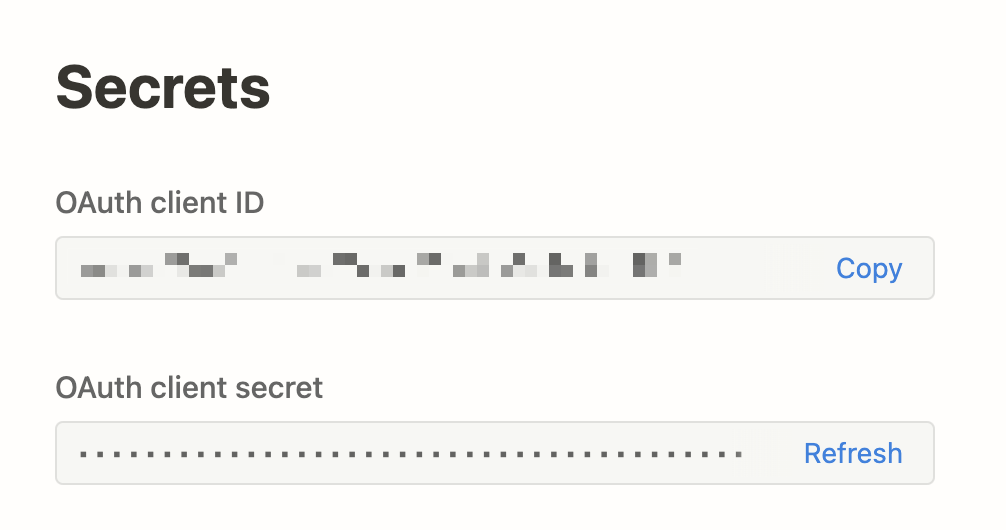
The request is authorized using HTTP Basic Authentication. The credential is a colon-delimited combination of the integration’s `CLIENT_ID` and `CLIENT_SECRET`: `CLIENT_ID:CLIENT_SECRET`. You can find these values on the integration settings page. Visit [notion.so/profile/integrations](https://www.notion.so/profile/integrations), find your integration, and click `View integration`.
### 2. Authenticate with Notion’s `access_token`
In your integration implementation, retrieve the `code` that Notion sent when it called your OAuth Authorize URL. Then, send the `code` as part of a POST request to Notion’s token URL: `https://api.notion.com/v1/oauth/token`.
The Notion `code` is valid for 10 minutes. If the `code` expires, then an error is returned and you need to reinitiate the auth flow for Notion to authenticate with your service ([Step 2a](#step-2a-provide-an-interstitial-for-the-auth-flow)).
To explore other possible errors, refer to the [OAuth 2.0 documentation](https://www.oauth.com/oauth2-servers/server-side-apps/possible-errors/). Default to re-initiating the auth flow to handle errors.
The request is authorized using HTTP Basic Authentication. The credential is a colon-delimited combination of the integration’s `CLIENT_ID` and `CLIENT_SECRET`: `CLIENT_ID:CLIENT_SECRET`. You can find these values on the integration settings page. Visit [notion.so/profile/integrations](https://www.notion.so/profile/integrations), find your integration, and click `View integration`.
 Note that in [HTTP Basic Authentication](https://developer.mozilla.org/en-US/docs/Web/HTTP/Authentication), credentials are `base64` encoded before being added to the `Authorization` header. Notion also requires the word `Basic` before the `base64` encoded string. A complete code param looks something like the following:
`Basic NjQ5Mzc0OTIzNzQ5MjM4NDc5MjM4NDc5MjM0NzkyMzc0OjQ3Mzg5Mjc0OTIzODQ3Mjk0ODcyMzkzNDgyNzk0ODcyMzQ5`
For more information, read about HTTP Basic Authentication in our [Authorization guide](/docs/authorization#step-3-send-the-code-in-a-post-request-to-the-notion-api).
The body of the request contains the following JSON-encoded fields:
| Parameter | Description | Value |
| :--- | :--- | :--- |
| `code` | A unique random code that Notion generates to authenticate with your service, generated when a user initiates the auth flow. | `"ABC"` (example value) |
| `grant_type` | A constant string. | `authorization_code` |
| `external_account` | Object with `key` and `name` properties. `key` should be a unique identifier for the account. Notion uses the `key` to determine whether or not the user is re-connecting the same account. `name` should be some way for the user to know which account they used to authenticate with your service. | Refer to the example below. |
The following example demonstrates an `external_account` object for `team@makenotion.com`, a Notion employee account, to authenticate with Slack to use a Slack Link Preview.
**`JSON`**
```json JSON
{
"key": "A83823453409384",
"name": "Notion - team@makenotion.com"
}
```
The account `name` appears in the `"My connections"` settings page, where a user can review their authentications for your integration.
Note that in [HTTP Basic Authentication](https://developer.mozilla.org/en-US/docs/Web/HTTP/Authentication), credentials are `base64` encoded before being added to the `Authorization` header. Notion also requires the word `Basic` before the `base64` encoded string. A complete code param looks something like the following:
`Basic NjQ5Mzc0OTIzNzQ5MjM4NDc5MjM4NDc5MjM0NzkyMzc0OjQ3Mzg5Mjc0OTIzODQ3Mjk0ODcyMzkzNDgyNzk0ODcyMzQ5`
For more information, read about HTTP Basic Authentication in our [Authorization guide](/docs/authorization#step-3-send-the-code-in-a-post-request-to-the-notion-api).
The body of the request contains the following JSON-encoded fields:
| Parameter | Description | Value |
| :--- | :--- | :--- |
| `code` | A unique random code that Notion generates to authenticate with your service, generated when a user initiates the auth flow. | `"ABC"` (example value) |
| `grant_type` | A constant string. | `authorization_code` |
| `external_account` | Object with `key` and `name` properties. `key` should be a unique identifier for the account. Notion uses the `key` to determine whether or not the user is re-connecting the same account. `name` should be some way for the user to know which account they used to authenticate with your service. | Refer to the example below. |
The following example demonstrates an `external_account` object for `team@makenotion.com`, a Notion employee account, to authenticate with Slack to use a Slack Link Preview.
**`JSON`**
```json JSON
{
"key": "A83823453409384",
"name": "Notion - team@makenotion.com"
}
```
The account `name` appears in the `"My connections"` settings page, where a user can review their authentications for your integration.
 A complete POST request looks like the below:
```curl
curl --location --request POST 'https://api.notion.com/v1/oauth/token' \
--header 'Authorization: Basic '"$BASE64_ENCODED_ID_AND_SECRET"'' \
--header 'Content-Type: application/json' \
--header 'Notion-Version: 2022-06-28' \
--data '{
"grant_type": "authorization_code",
"code": "e202e8c9-0990-40af-855f-ff8f872b1ec6",
"external_account": {
"key": "A83823453409384",
"name": "Notion - team@makenotion.com"
}
}'
```
Notion responds to the request with a 200 OK and the following response body:
| Parameter | Description | Value |
| :----------------------- | :---------------------------------------------------------------------------------------------------------------------------------------------------------------------------------------------------- | :------------------------------------------------------------------------------------------ |
| `access_token` | A unique random string that Notion generates, in exchange for the `code`. You can use the `access_token` to make authorized requests to the Notion API. | `"ABC"` (example value) |
| `bot_id` | A UUID representing this authorization. | `"3d592781-2dcc-4d4b-bcf3-776a2a7ad7b8"` (example value) |
| `duplicated_template_id` | Always `null` for Link Preview integrations. Create a [standard public integration](/docs/getting-started#public-notion-integrations) to use template URLs with the API. | `null` |
| `owner` | An object indicating who owns the authorized workspace. | Refer to the [bot object](/reference/user#bots) documentation. |
| `token_type` | A constant string. | `"bearer"` |
| `workspace_id` | A UUID representing the ID of the Notion workspace where the authorization flow took place. | `"3d592781-2dcc-4d4b-bcf3-776a2a7ad7b8"` (example value) |
| `workspace_icon` | A URL to an image, or a string of characters, that identifies the workspace. This could be useful if you’d like to display this authorization in your service’s UI. | `"🍩"` |
| `workspace_name` | A string representing a human-readable name that can be used to display this authorization in your service’s UI. | `"My Team Workspace"` (example value) |
Store the Notion response, and associate it with the user who initiated the OAuth flow. Notion stores the token that you provided.
For tips on storing `access_token`s, check out [the auth guide](/docs/authorization#step-5-the-integration-stores-the-access_token-for-future-requests).
### 3. Redirect to the `redirect_uri` with `code`
When a user selects `"Allow"` to grant Notion the requested permissions, redirect to the `redirect_uri` , the constant string [`notion.so/externalIntegrationAuthCallback`](http://notion.so/externalIntegrationAuthCallback), with your service’s unique `code` and the `state` that Notion sent to your service when it initiated the auth flow.
When Notion receives the redirect, it sends a POST request to the OAuth Token URL that you provided with the following body:
| Parameter | Description | Value |
| :-------------- | :-------------------------------------------------------------------------------------------------------------------------------------------------------------- | :------------------------------------------ |
| `code` | A unique random string that your service generates, retrieved from your service’s request to the `redirect_uri`. Notion is sending back the code that you sent. | `WQtaEYNV9jfL4yr89KJA0thw` |
| `client_id` | The OAuth Client ID that you provided when you created the integration. | `mRkZGFjM` (example value) |
| `client_secret` | The OAuth Client Secret that you provided when you created the integration. | `ZGVmMjMz` (example value) |
| `redirect_uri` | A constant string. | `notion.so/externalIntegrationAuthCallback` |
| `grant_type` | A constant string. | `authorization_code` |
The body is sent in the `application/x-www-form-urlencoded` format and expects a JSON response.
### 4. Share the `access_token` with Notion
From your OAuth Token URL, respond to Notion’s POST request with an `access_token` body parameter in your 200 response.
Notion saves the `access_token` to send in future requests. Notion sends a request to your Unfurl Callback URL every time that the user associated with the token pastes a new Link Preview enabled URL or revisits a page with an existing Link Preview to refresh data.
**How Notion handles OAuth errors**
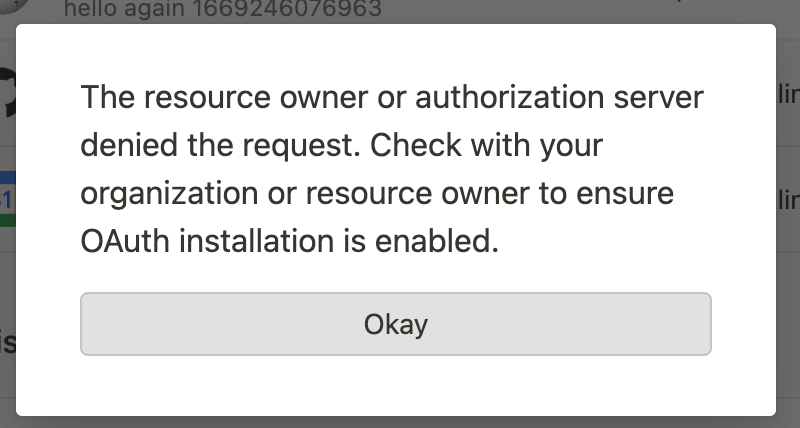
Notion handles error responses as described by the [OAuth Error Spec](https://datatracker.ietf.org/doc/html/rfc6749#section-4.1.2.1). The message that Notion displays to the user varies depending on the information that you provide.
For example, you can respond with an `error` and a standard error code like `access_denied`:
`https://notion.so/externalintegrationauthcallback?error=access_denied`
In this instance, Notion shares the following message:
A complete POST request looks like the below:
```curl
curl --location --request POST 'https://api.notion.com/v1/oauth/token' \
--header 'Authorization: Basic '"$BASE64_ENCODED_ID_AND_SECRET"'' \
--header 'Content-Type: application/json' \
--header 'Notion-Version: 2022-06-28' \
--data '{
"grant_type": "authorization_code",
"code": "e202e8c9-0990-40af-855f-ff8f872b1ec6",
"external_account": {
"key": "A83823453409384",
"name": "Notion - team@makenotion.com"
}
}'
```
Notion responds to the request with a 200 OK and the following response body:
| Parameter | Description | Value |
| :----------------------- | :---------------------------------------------------------------------------------------------------------------------------------------------------------------------------------------------------- | :------------------------------------------------------------------------------------------ |
| `access_token` | A unique random string that Notion generates, in exchange for the `code`. You can use the `access_token` to make authorized requests to the Notion API. | `"ABC"` (example value) |
| `bot_id` | A UUID representing this authorization. | `"3d592781-2dcc-4d4b-bcf3-776a2a7ad7b8"` (example value) |
| `duplicated_template_id` | Always `null` for Link Preview integrations. Create a [standard public integration](/docs/getting-started#public-notion-integrations) to use template URLs with the API. | `null` |
| `owner` | An object indicating who owns the authorized workspace. | Refer to the [bot object](/reference/user#bots) documentation. |
| `token_type` | A constant string. | `"bearer"` |
| `workspace_id` | A UUID representing the ID of the Notion workspace where the authorization flow took place. | `"3d592781-2dcc-4d4b-bcf3-776a2a7ad7b8"` (example value) |
| `workspace_icon` | A URL to an image, or a string of characters, that identifies the workspace. This could be useful if you’d like to display this authorization in your service’s UI. | `"🍩"` |
| `workspace_name` | A string representing a human-readable name that can be used to display this authorization in your service’s UI. | `"My Team Workspace"` (example value) |
Store the Notion response, and associate it with the user who initiated the OAuth flow. Notion stores the token that you provided.
For tips on storing `access_token`s, check out [the auth guide](/docs/authorization#step-5-the-integration-stores-the-access_token-for-future-requests).
### 3. Redirect to the `redirect_uri` with `code`
When a user selects `"Allow"` to grant Notion the requested permissions, redirect to the `redirect_uri` , the constant string [`notion.so/externalIntegrationAuthCallback`](http://notion.so/externalIntegrationAuthCallback), with your service’s unique `code` and the `state` that Notion sent to your service when it initiated the auth flow.
When Notion receives the redirect, it sends a POST request to the OAuth Token URL that you provided with the following body:
| Parameter | Description | Value |
| :-------------- | :-------------------------------------------------------------------------------------------------------------------------------------------------------------- | :------------------------------------------ |
| `code` | A unique random string that your service generates, retrieved from your service’s request to the `redirect_uri`. Notion is sending back the code that you sent. | `WQtaEYNV9jfL4yr89KJA0thw` |
| `client_id` | The OAuth Client ID that you provided when you created the integration. | `mRkZGFjM` (example value) |
| `client_secret` | The OAuth Client Secret that you provided when you created the integration. | `ZGVmMjMz` (example value) |
| `redirect_uri` | A constant string. | `notion.so/externalIntegrationAuthCallback` |
| `grant_type` | A constant string. | `authorization_code` |
The body is sent in the `application/x-www-form-urlencoded` format and expects a JSON response.
### 4. Share the `access_token` with Notion
From your OAuth Token URL, respond to Notion’s POST request with an `access_token` body parameter in your 200 response.
Notion saves the `access_token` to send in future requests. Notion sends a request to your Unfurl Callback URL every time that the user associated with the token pastes a new Link Preview enabled URL or revisits a page with an existing Link Preview to refresh data.
**How Notion handles OAuth errors**
Notion handles error responses as described by the [OAuth Error Spec](https://datatracker.ietf.org/doc/html/rfc6749#section-4.1.2.1). The message that Notion displays to the user varies depending on the information that you provide.
For example, you can respond with an `error` and a standard error code like `access_denied`:
`https://notion.so/externalintegrationauthcallback?error=access_denied`
In this instance, Notion shares the following message:
 You can also add an `error_description` to the response:
`https://notion.so/externalintegrationauthcallback?error=access_denied&error_description=The+user+has+denied+your+application+access`
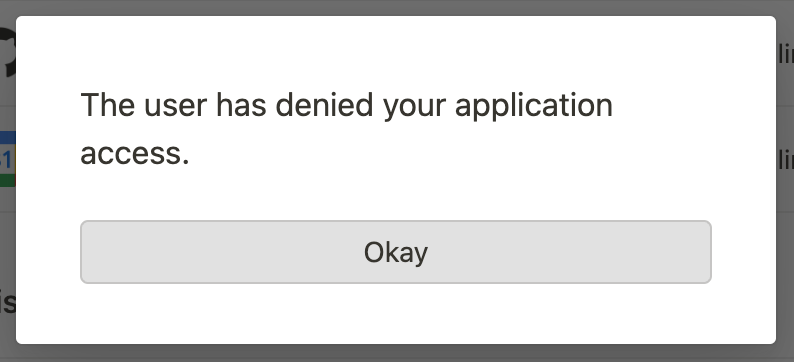
If Notion detects a description, then it replaces the standard dialogue prompt with the specified description, as in the below:
You can also add an `error_description` to the response:
`https://notion.so/externalintegrationauthcallback?error=access_denied&error_description=The+user+has+denied+your+application+access`
If Notion detects a description, then it replaces the standard dialogue prompt with the specified description, as in the below:
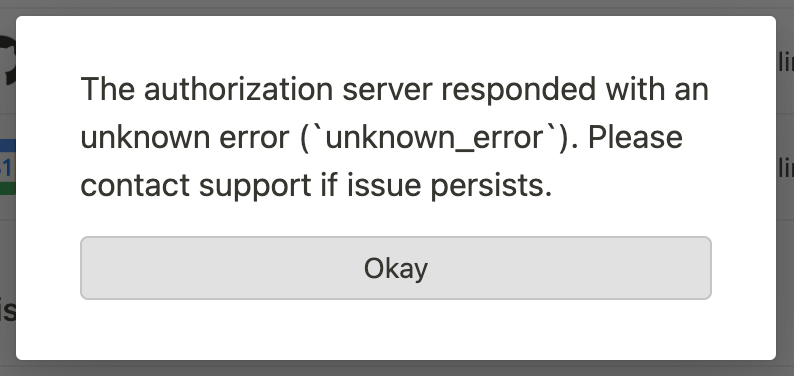
 If Notion doesn’t recognize the error code, then it notes that the error is unknown:
 For more details on standard error codes, refer to the [OAuth spec](https://www.rfc-editor.org/rfc/rfc6749#section-4.2.2.1).
#### How to use refresh tokens (optional)
Skip to [Step 2e](#step-2e-test-the-auth-flow) if you’re creating long-living access tokens. This section only applies to temporary access tokens.
##### Return a `refresh_token`
Instead of creating a long-living `access_token`, you can send a `refresh_token` alongside a temporary access token. Notion can then use the `refresh_token` to fetch new tokens from your service.
If you return a `refresh_token`, then you need to also return an `expires_in` integer, as in the following example:
**`Example 200 JSON response from your service with refresh_token and expires_in values`**
```json Example 200 JSON response from your service with refresh_token and expires_in values
{
"access_token": "ABC",
"refresh_token": "XYZ",
"expires_in": 60000
}
```
`expires_in` represents the number of seconds until the `access_token` expires.
##### Notion requests to refresh a token
If Notion detects that the `access_token` is expired, meaning that the current time exceeds the time of the last refresh plus the `expires_in` value, then Notion refreshes the tokens when it calls your endpoints.
To refresh the token, Notion sends a POST request to your OAuth Token URL with the following parameters:
| Parameter | Description | Value |
| :-------------- | :-------------------------------------------------------------------------- | :-------------------------------------------------- |
| `refresh_token` | The unique random string returned in the response to the previous request. | `"ABC"` (example value) |
| `client_id` | The OAuth Client ID that you provided when you created the integration. | `mRkZGFjM` (example value) |
| `client_secret` | The OAuth Client Secret that you provided when you created the integration. | `ZGVmMjMz` (example value) |
| `redirect_uri` | A constant string. | `https://notion.so/externalIntegrationAuthCallback` |
| `grant_type` | A constant string. | `refresh_token` |
##### Respond to Notion’s request to refresh a token
From your OAuth Token URL, return an `access_token` in your 200 response. You can optionally return new `refresh_token` and `expires_in` values.
### 5. Test the auth flow in Notion
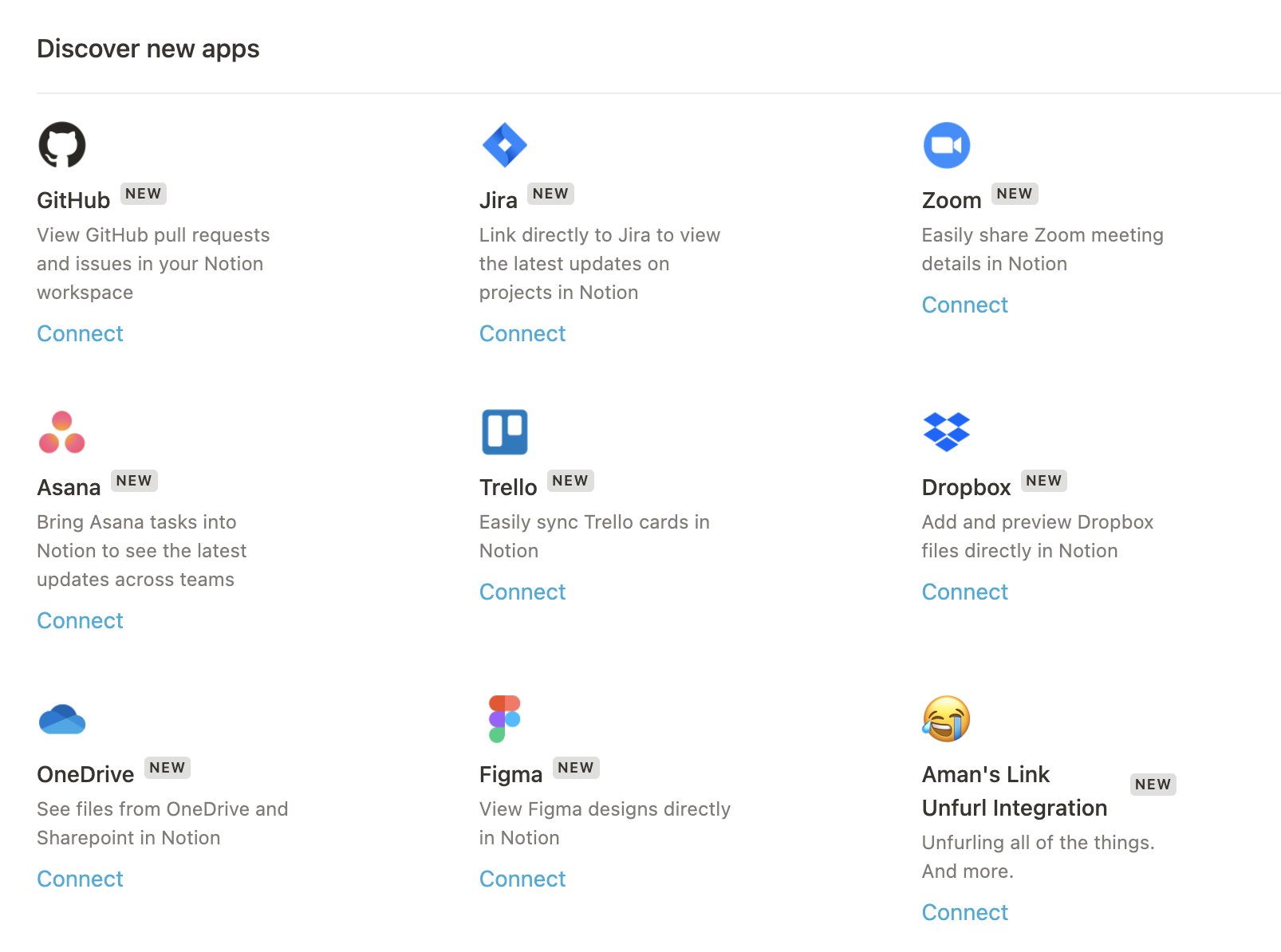
To test the auth flow, make sure that you’ve added the integration to a workspace. Then, navigate to `"My connections"` in the workspace settings. Click `"Show all"`. Find the integration that you created in the list, and select `"Connect"` to kick off the auth flow.
For more details on standard error codes, refer to the [OAuth spec](https://www.rfc-editor.org/rfc/rfc6749#section-4.2.2.1).
#### How to use refresh tokens (optional)
Skip to [Step 2e](#step-2e-test-the-auth-flow) if you’re creating long-living access tokens. This section only applies to temporary access tokens.
##### Return a `refresh_token`
Instead of creating a long-living `access_token`, you can send a `refresh_token` alongside a temporary access token. Notion can then use the `refresh_token` to fetch new tokens from your service.
If you return a `refresh_token`, then you need to also return an `expires_in` integer, as in the following example:
**`Example 200 JSON response from your service with refresh_token and expires_in values`**
```json Example 200 JSON response from your service with refresh_token and expires_in values
{
"access_token": "ABC",
"refresh_token": "XYZ",
"expires_in": 60000
}
```
`expires_in` represents the number of seconds until the `access_token` expires.
##### Notion requests to refresh a token
If Notion detects that the `access_token` is expired, meaning that the current time exceeds the time of the last refresh plus the `expires_in` value, then Notion refreshes the tokens when it calls your endpoints.
To refresh the token, Notion sends a POST request to your OAuth Token URL with the following parameters:
| Parameter | Description | Value |
| :-------------- | :-------------------------------------------------------------------------- | :-------------------------------------------------- |
| `refresh_token` | The unique random string returned in the response to the previous request. | `"ABC"` (example value) |
| `client_id` | The OAuth Client ID that you provided when you created the integration. | `mRkZGFjM` (example value) |
| `client_secret` | The OAuth Client Secret that you provided when you created the integration. | `ZGVmMjMz` (example value) |
| `redirect_uri` | A constant string. | `https://notion.so/externalIntegrationAuthCallback` |
| `grant_type` | A constant string. | `refresh_token` |
##### Respond to Notion’s request to refresh a token
From your OAuth Token URL, return an `access_token` in your 200 response. You can optionally return new `refresh_token` and `expires_in` values.
### 5. Test the auth flow in Notion
To test the auth flow, make sure that you’ve added the integration to a workspace. Then, navigate to `"My connections"` in the workspace settings. Click `"Show all"`. Find the integration that you created in the list, and select `"Connect"` to kick off the auth flow.
 If you don’t see your integration in the list, then refresh the page. Notion only loads new integrations on page load.
If the auth flow is successful, then you’ll see a new entry under the `"My connections"` menu.
If you don’t see your integration in the list, then refresh the page. Notion only loads new integrations on page load.
If the auth flow is successful, then you’ll see a new entry under the `"My connections"` menu.
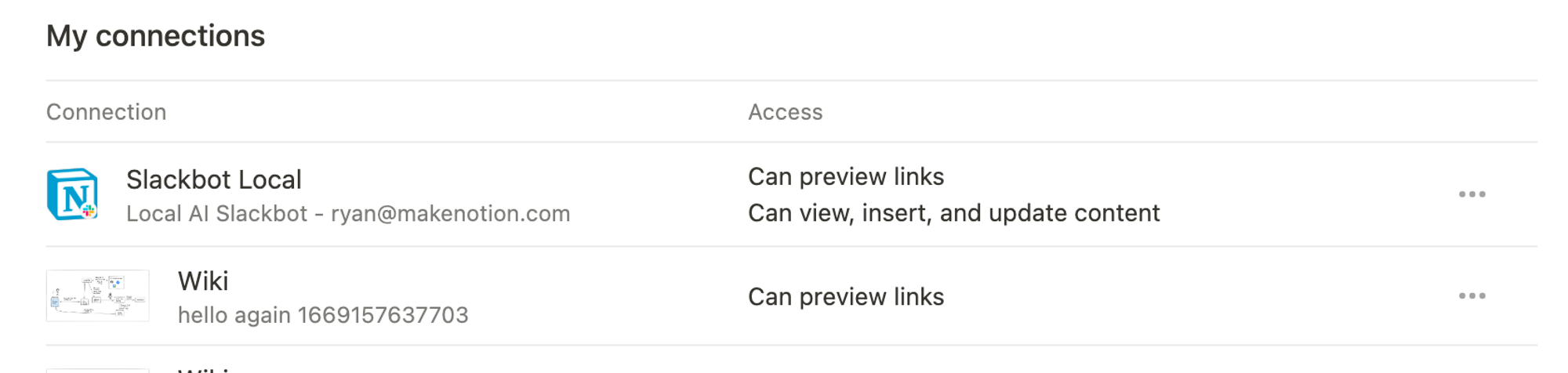 To verify that the `key` for this connection is unique, repeat the auth flow multiple times using the same credentials to validate that you only get a single entry.
## 📞 Use the Unfurl Callback URL
### 1. Configure unfurl attributes
After a user pastes a Link Preview enabled link and completes the auth flow, Notion sends a POST request to the Unfurl Callback URL that you provided in the integration settings.
To verify that the `key` for this connection is unique, repeat the auth flow multiple times using the same credentials to validate that you only get a single entry.
## 📞 Use the Unfurl Callback URL
### 1. Configure unfurl attributes
After a user pastes a Link Preview enabled link and completes the auth flow, Notion sends a POST request to the Unfurl Callback URL that you provided in the integration settings.
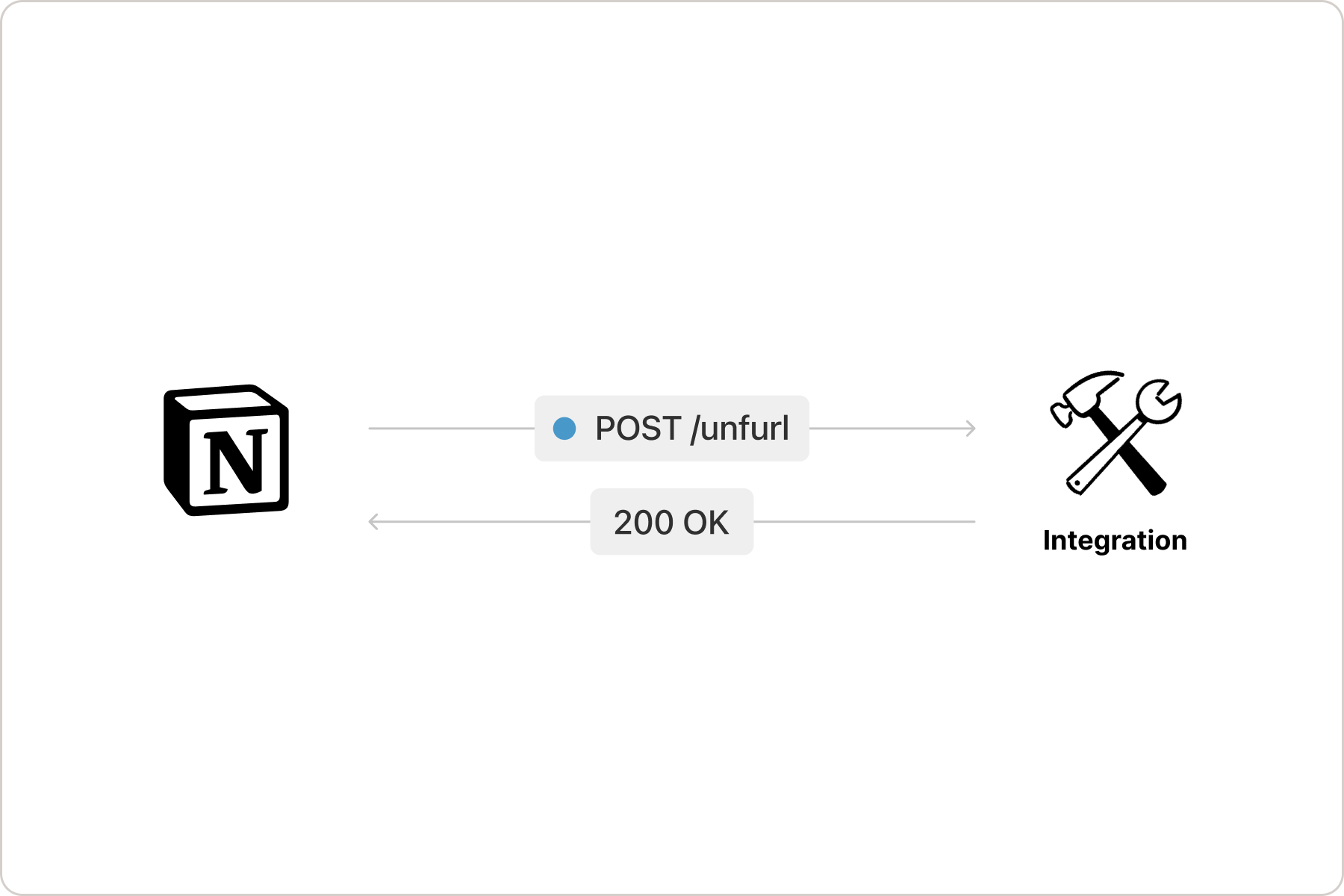 The request includes a Bearer authorization with the user’s `access_token` from your service, and the payload is a single field called `uri` that includes the link that the user shared:
```curl
curl -d '{"uri":"http://example.com/file/123"}' \
-H "Content-Type: application/json" \
-H "Authorization: Bearer "
-X POST https://example.com/unfurl
```
Set up the Unfurl Callback URL to respond to Notion’s request with a 200 OK including the `uri`, and an array of all of the unfurl attributes, the values to display in the Link Preview. **The array must include a `title` attribute that gives the Link Preview a title and a _dev_ attribute that indicates the developer or company that created the Link Preview**.
The following is an example response:
**`JSON`**
```json JSON
{
"uri": "http://example.com/file/123",
"operations": [
{
"path": [
"attributes"
],
"set": [
{
"id": "title",
"name": "Title",
"type": "inline",
"inline": {
"title": {
"value": "The Link Preview's Title",
"section": "title"
}
}
},
{
"id": "dev",
"name": "Developer Name",
"type": "inline",
"inline": {
"plain_text": {
"value": "Acme Inc",
"section": "secondary"
}
}
},
{
"id": "color",
"name": "Color",
"type": "inline",
"inline": {
"color": {
"value": {
"r": 235,
"g": 64,
"b": 52
},
"section": "background"
}
}
}
]
}
]
}
```
To preview how different response objects unfurl in a Link Preview, explore the integration's Link Preview Lab.
To learn more about unfurl attributes, refer to the Link Preview [unfurl attributes reference](/reference/unfurl-attribute-object).
### 2. Handle unfurl request errors
Set up the Unfurl Callback URL to handle errors, as in the following example.
**`JSON`**
```json JSON
{
"uri": "http://example.com/file/123",
"operations": [
{
"path": ["error"],
"set": { "status": 404, "message": "Content not found" }
}
}
```
## 🔁 Manage updates to Link Previews
### Update Link Previews to reflect data shared in unfurl attributes
If the unfurl attributes from your service change over time, then you can alert Notion to update the Link Preview to mirror those changes.
When your service detects changes to data that is referenced by a Link Preview, send a PATCH request to Notion’s `/v1/external/object` endpoint to update the unfurl attributes.
The request includes a Bearer authorization with the user’s `access_token` from your service, and the payload is a single field called `uri` that includes the link that the user shared:
```curl
curl -d '{"uri":"http://example.com/file/123"}' \
-H "Content-Type: application/json" \
-H "Authorization: Bearer "
-X POST https://example.com/unfurl
```
Set up the Unfurl Callback URL to respond to Notion’s request with a 200 OK including the `uri`, and an array of all of the unfurl attributes, the values to display in the Link Preview. **The array must include a `title` attribute that gives the Link Preview a title and a _dev_ attribute that indicates the developer or company that created the Link Preview**.
The following is an example response:
**`JSON`**
```json JSON
{
"uri": "http://example.com/file/123",
"operations": [
{
"path": [
"attributes"
],
"set": [
{
"id": "title",
"name": "Title",
"type": "inline",
"inline": {
"title": {
"value": "The Link Preview's Title",
"section": "title"
}
}
},
{
"id": "dev",
"name": "Developer Name",
"type": "inline",
"inline": {
"plain_text": {
"value": "Acme Inc",
"section": "secondary"
}
}
},
{
"id": "color",
"name": "Color",
"type": "inline",
"inline": {
"color": {
"value": {
"r": 235,
"g": 64,
"b": 52
},
"section": "background"
}
}
}
]
}
]
}
```
To preview how different response objects unfurl in a Link Preview, explore the integration's Link Preview Lab.
To learn more about unfurl attributes, refer to the Link Preview [unfurl attributes reference](/reference/unfurl-attribute-object).
### 2. Handle unfurl request errors
Set up the Unfurl Callback URL to handle errors, as in the following example.
**`JSON`**
```json JSON
{
"uri": "http://example.com/file/123",
"operations": [
{
"path": ["error"],
"set": { "status": 404, "message": "Content not found" }
}
}
```
## 🔁 Manage updates to Link Previews
### Update Link Previews to reflect data shared in unfurl attributes
If the unfurl attributes from your service change over time, then you can alert Notion to update the Link Preview to mirror those changes.
When your service detects changes to data that is referenced by a Link Preview, send a PATCH request to Notion’s `/v1/external/object` endpoint to update the unfurl attributes.
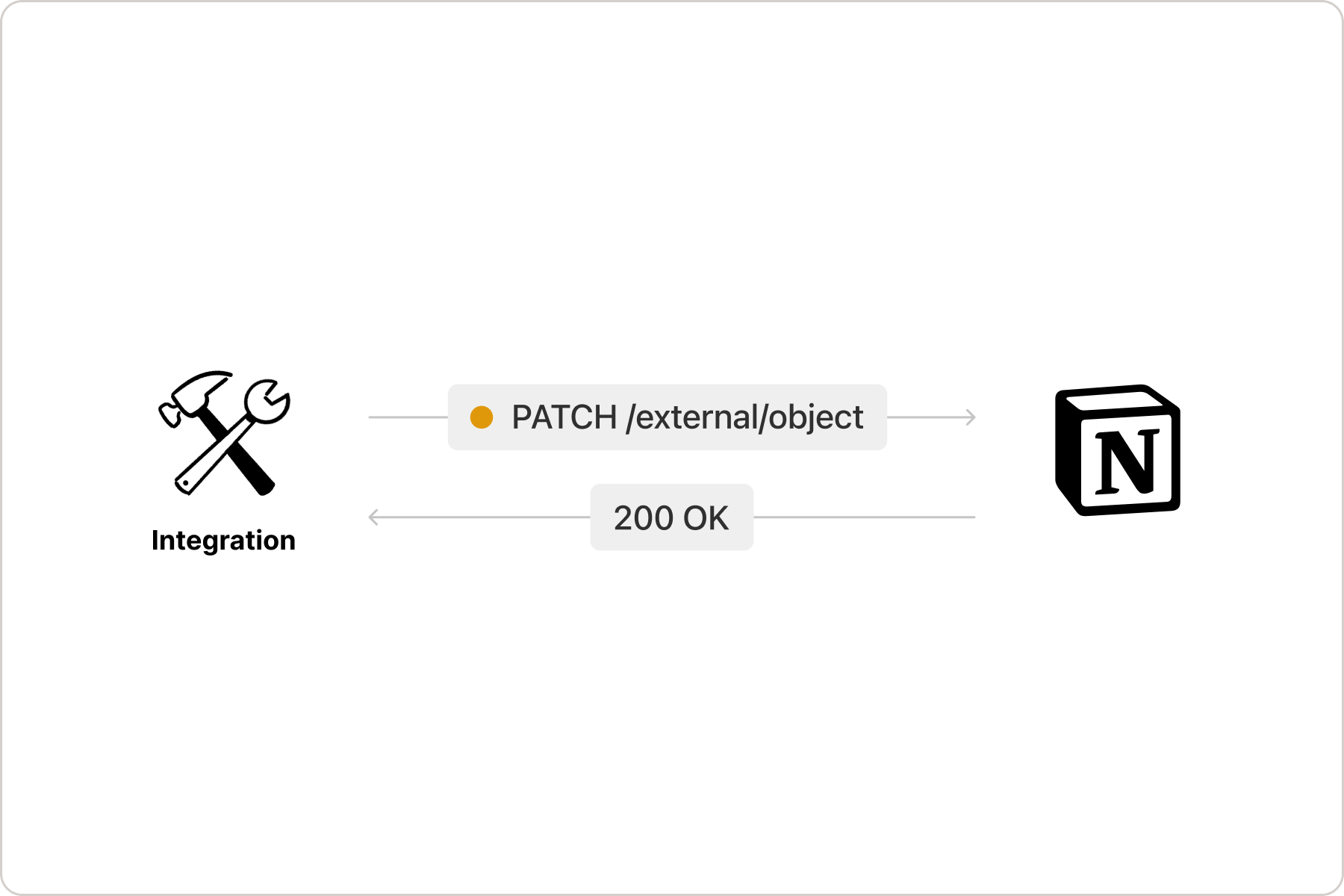 Include all of the same objects from the Unfurl Callback URL response in the request, including the attributes that haven’t changed, as in the following example:
```curl
curl -d `{
"uri": "http://example.com/file/123",
"operations": [
{
"path": ["attributes"],
"set": [
{
"id": "title",
"name": "Title",
"type": "inline",
"inline": {
"title": {
"value": "The Link Preview's NEW Title",
"section": "title"
}
}
},
{
"id": "color",
"name": "Color",
"type": "inline",
"inline": {
"color": {
"value": {
"r": 235,
"g": 64,
"b": 52
},
"section": "background"
}
}
}
]
}
]
}` \
-H "Content-Type: application/json" \
-H "Authorization: Bearer " \
-H "Notion-Version: 2021-08-16" \
-X PATCH https://api.notion.com/v1/external/object
```
It’s also possible to set a new error request. For example, if the data originally shared in a Link Preview can’t be found, then you could send an update request as follows:
```curl
curl -d `{
"uri": "http://example.com/file/123",
"operations": [
{
"path": ["error"],
"set": { "status": 404, "message": "Content not found" }
}
]
}` \
-H "Content-Type: application/json" \
-H "Authorization: Bearer " \
-H "Notion-Version: 2021-08-16" \
-X PATCH https://api.notion.com/v1/external/object
```
You can also set both new attributes and an error request at the same time, as in the below example:
```curl
curl -d `{
"uri": "http://example.com/file/123",
"operations": [
{
"path": ["attributes"],
"set": [
{
"id": "title",
"name": "Title",
"type": "inline",
"inline": {
"title": {
"value": "The Link Preview's Title",
"section": "title"
}
}
},
{
"id": "color",
"name": "Color",
"type": "inline",
"inline": {
"color": {
"value": {
"r": 235,
"g": 64,
"b": 52
},
"section": "background"
}
}
}
]
},
{
"path": ["error"],
"set": { "status": 404, "message": "Content not found" }
}
]
}` \
-H "Content-Type: application/json" \
-H "Authorization: Bearer " \
-H "Notion-Version: 2021-08-16" \
-X PATCH https://api.notion.com/v1/external/object
```
When updating a Link Preview’s unfurl attributes, there’s no need to clear the `error`. If no `error` is sent, then the `error` is automatically cleared.
#### Notion updates your service when a user deletes Link Preview enabled URLs
When a user deletes all Link Previews associated with a URL from their workspace, Notion sends a DELETE request to your Unfurl Callback URL.
Include all of the same objects from the Unfurl Callback URL response in the request, including the attributes that haven’t changed, as in the following example:
```curl
curl -d `{
"uri": "http://example.com/file/123",
"operations": [
{
"path": ["attributes"],
"set": [
{
"id": "title",
"name": "Title",
"type": "inline",
"inline": {
"title": {
"value": "The Link Preview's NEW Title",
"section": "title"
}
}
},
{
"id": "color",
"name": "Color",
"type": "inline",
"inline": {
"color": {
"value": {
"r": 235,
"g": 64,
"b": 52
},
"section": "background"
}
}
}
]
}
]
}` \
-H "Content-Type: application/json" \
-H "Authorization: Bearer " \
-H "Notion-Version: 2021-08-16" \
-X PATCH https://api.notion.com/v1/external/object
```
It’s also possible to set a new error request. For example, if the data originally shared in a Link Preview can’t be found, then you could send an update request as follows:
```curl
curl -d `{
"uri": "http://example.com/file/123",
"operations": [
{
"path": ["error"],
"set": { "status": 404, "message": "Content not found" }
}
]
}` \
-H "Content-Type: application/json" \
-H "Authorization: Bearer " \
-H "Notion-Version: 2021-08-16" \
-X PATCH https://api.notion.com/v1/external/object
```
You can also set both new attributes and an error request at the same time, as in the below example:
```curl
curl -d `{
"uri": "http://example.com/file/123",
"operations": [
{
"path": ["attributes"],
"set": [
{
"id": "title",
"name": "Title",
"type": "inline",
"inline": {
"title": {
"value": "The Link Preview's Title",
"section": "title"
}
}
},
{
"id": "color",
"name": "Color",
"type": "inline",
"inline": {
"color": {
"value": {
"r": 235,
"g": 64,
"b": 52
},
"section": "background"
}
}
}
]
},
{
"path": ["error"],
"set": { "status": 404, "message": "Content not found" }
}
]
}` \
-H "Content-Type: application/json" \
-H "Authorization: Bearer " \
-H "Notion-Version: 2021-08-16" \
-X PATCH https://api.notion.com/v1/external/object
```
When updating a Link Preview’s unfurl attributes, there’s no need to clear the `error`. If no `error` is sent, then the `error` is automatically cleared.
#### Notion updates your service when a user deletes Link Preview enabled URLs
When a user deletes all Link Previews associated with a URL from their workspace, Notion sends a DELETE request to your Unfurl Callback URL.
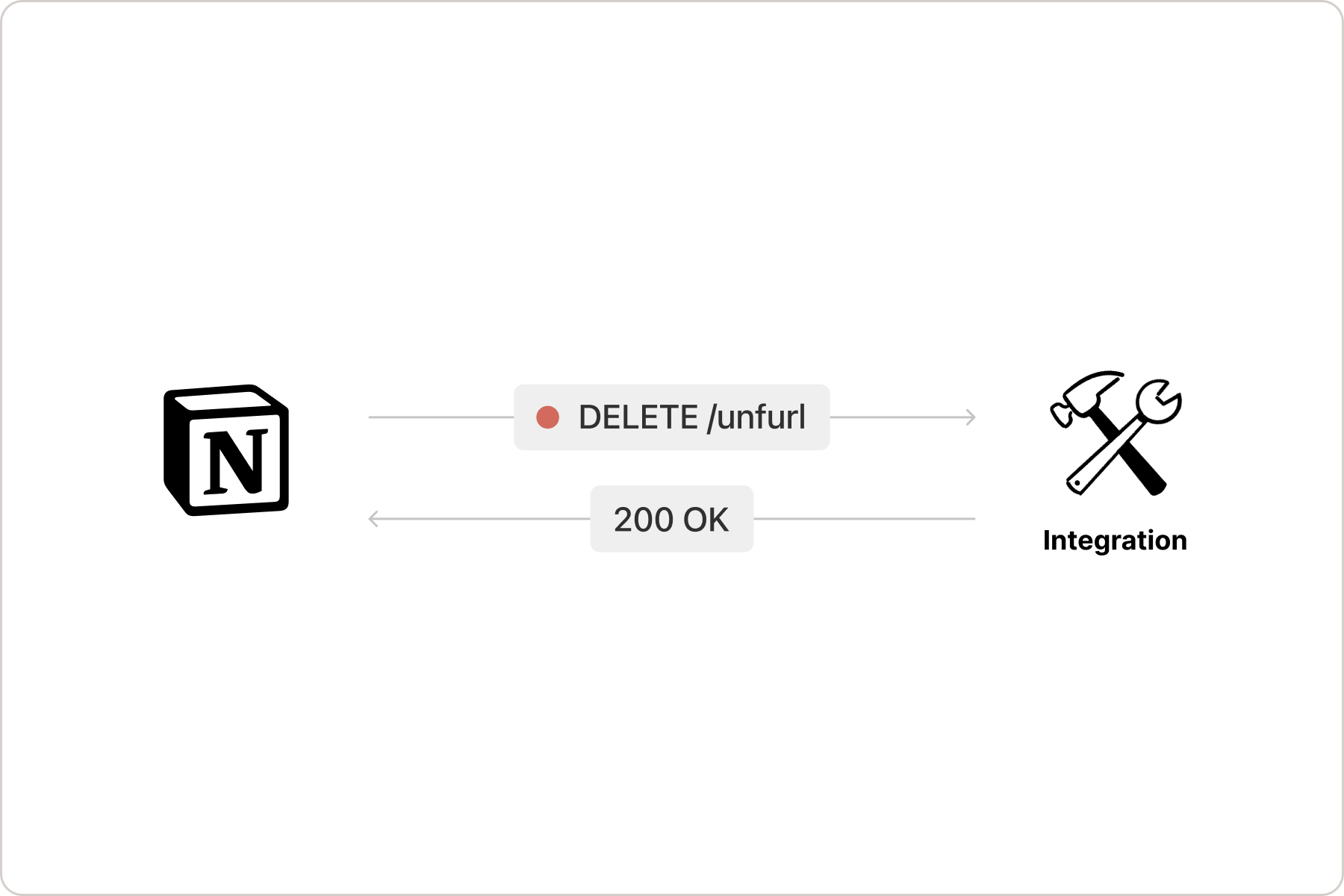 Listen for the request to perform any associated actions, like deleting the record from your service.
## 💫 Submit your integration for security review
Before a Link Preview integration can be publicly distributed, it needs to pass a security review. [Fill out this form](https://docs.google.com/forms/d/e/1FAIpQLSd94UcRziV-1yFv6udO0qZwohLyXxhYYadUqEJyyEd03RAj1w/viewform) to submit your integration for review.
## 👀 Next steps
- To learn more about customizing a Link Preview’s unfurl attributes, refer to the [reference docs](/reference/unfurl-attribute-object)
Listen for the request to perform any associated actions, like deleting the record from your service.
## 💫 Submit your integration for security review
Before a Link Preview integration can be publicly distributed, it needs to pass a security review. [Fill out this form](https://docs.google.com/forms/d/e/1FAIpQLSd94UcRziV-1yFv6udO0qZwohLyXxhYYadUqEJyyEd03RAj1w/viewform) to submit your integration for review.
## 👀 Next steps
- To learn more about customizing a Link Preview’s unfurl attributes, refer to the [reference docs](/reference/unfurl-attribute-object)